
Direct Share can't find your other device on campus Wi-Fi? Use your phone's hotspot
Oaklet Notes ·
The short answer
Turn on your phone's personal hotspot, connect your computer to it, and use Direct Share as usual. If both devices are Apple (iPhone, iPad, or Mac), you don't need this at all.
Direct Share sends notes straight from one of your devices to another, with no server in between. At home it usually just works. On a campus network, or on public Wi-Fi at a coffee shop, hotel, or airport, the other device may never show up in the list.
Why it happens
To find each other, two devices on the same Wi-Fi announce themselves to the local network. Many campus and public networks block those announcements, and some also stop devices on the network from talking to each other at all. That protects people on a shared network, but it also means two devices sitting side by side on the same Wi-Fi can't see each other.
The fix: let your phone make a small network of its own
- On your phone, turn on its personal hotspot.
- Connect your computer to that hotspot.
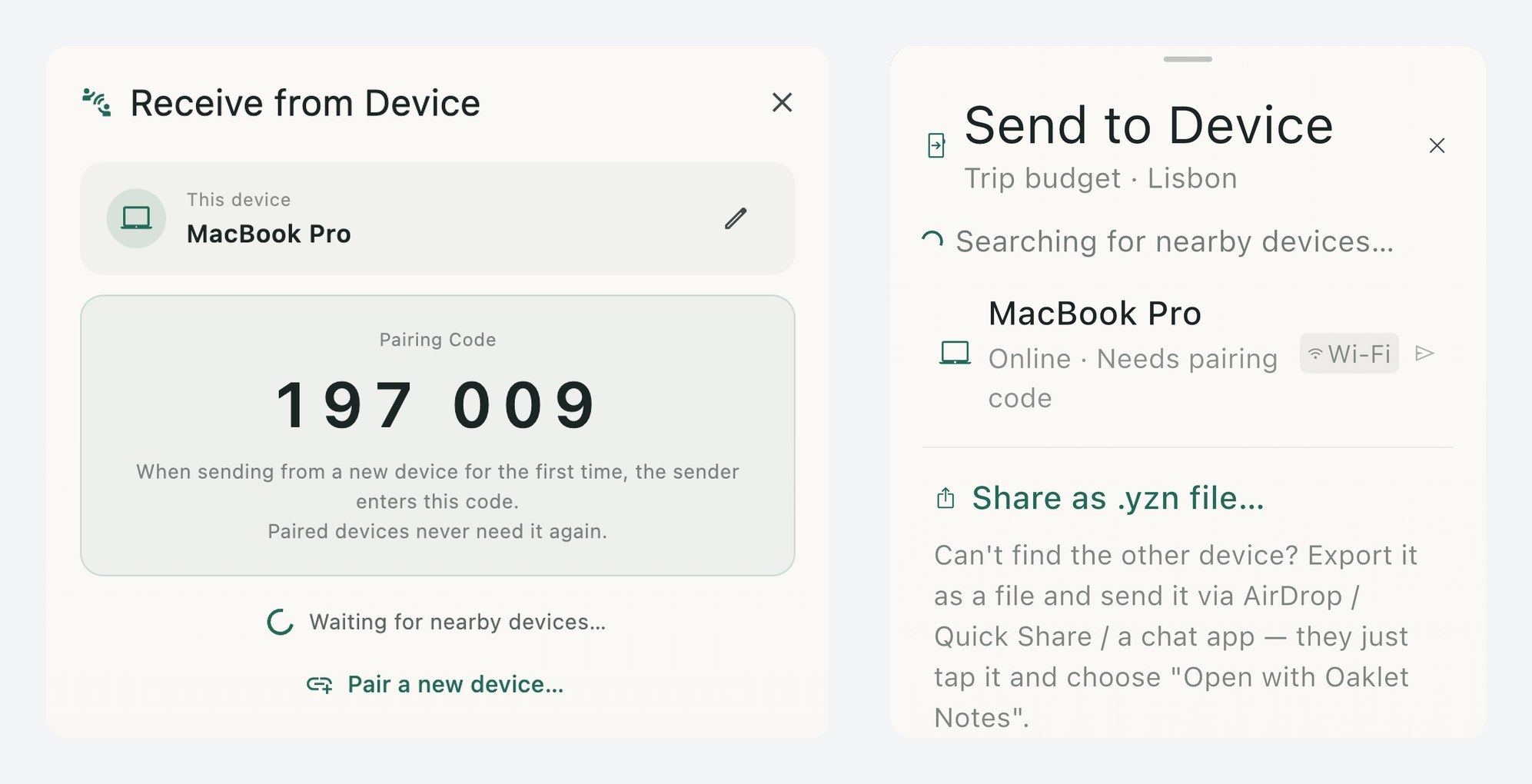
- Use Direct Share as usual. On one device, open Receive from Device. On the other, choose Send to Device and pick the device from the list.
You don't need cellular data. The notes travel directly between your two devices over the hotspot, so Direct Share doesn't use your data plan. Your computer might still use the hotspot for other internet traffic while it's connected. To make sure that doesn't use data either, turn cellular data off on your phone before you start.
Two things to know
- On Windows, give it a moment. When a Windows computer is sending to the phone, the phone can take about 15 seconds to appear in the list. Keep the panel open and it will show up.
- Let the phone host the hotspot, not the computer. If a Windows laptop shares its Mobile Hotspot with the phone instead, the phone can send to the laptop, but the laptop can't find the phone.
Using an iPhone, iPad, and Mac together?
You don't need any of this. Apple devices link to each other directly, the same way AirDrop does, so they don't need a shared network at all, not even a hotspot. As with AirDrop, keep Wi-Fi and Bluetooth turned on. Your devices don't have to be connected to any network. The device list labels each device "Wi-Fi" or "Direct" so you can see which route is in use.
If the devices still can't find each other
You can always send a file instead. Choose Share as .yzn file… at the bottom of the Send to Device panel, and send the file however you like: AirDrop, Quick Share, a chat app, or email. On the other device, open the file with Oaklet Notes to add the notes.
One caution: a Direct Share transfer is encrypted, but an exported .yzn file is not. Anyone who gets the file can read it. For sensitive notes, use the hotspot method above, or put the file in an encrypted archive before sending it.
For the full guide, see Direct Share in the Oaklet Notes User Guide. Direct Share is part of the Free plan. Download Oaklet Notes to try it.