
The short answer
Open Settings in Oaklet Notes, go to Editor, and set Finger input to Scroll and select (only the pen draws). Your palm and fingers stop drawing. Apple Pencil writes as usual, and a finger on the page scrolls it instead.
Why your palm draws
To the screen, a palm resting on the glass is just another finger. Oaklet Notes has one setting that decides what a finger does on the handwriting layer and on drawing canvases, and it has three options:
| Option | What a finger (or palm) does |
|---|---|
| Automatic (the default) | On an iPad with Apple Pencil connected, only the Pencil draws. On other devices, a finger draws, the same as Draw. |
| Draw | A finger always draws, and so does a palm resting on the screen. |
| Scroll and select | A finger never draws. It scrolls the page instead. |
Whichever option you pick, your pen and a mouse still draw.
On iPad, Automatic relies on Apple Pencil native engine (iPad) in Settings → Editor, which is on unless you turned it off.
How to change it
- Open Settings.
- Choose Editor.
- Under Finger input, pick Scroll and select (only the pen draws).
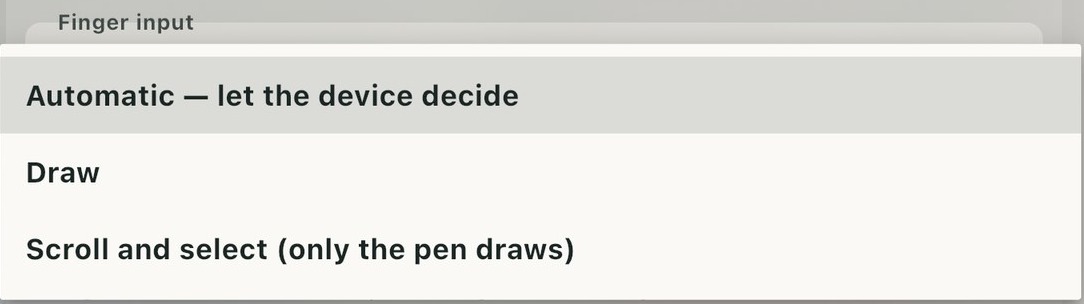
The change applies right away. If you don't see Finger input, turn on Page handwriting in Settings → Editor first.
What changes after you switch
- Your palm no longer leaves marks.
- One finger scrolls the page instead of drawing.
- Two fingers still scroll and zoom.
- On iPad, only Apple Pencil draws.
- To draw with your finger again, switch back to Draw or Automatic.
If you keep Automatic or Draw
Oaklet Notes has its own drawing engine, used on Windows, Mac, Android and Linux, and on iPad when the Apple Pencil native engine is turned off. In Automatic or Draw, that engine still does two things for you. While the pen is writing, any new touch is ignored. And if your palm touches down first and starts a line, that line is thrown away the moment the pen lands, and the pen takes over. What these can't catch is a palm that touches and lifts without the pen ever reaching the screen. Scroll and select is the only option that stops that.
On a Windows touchscreen laptop
Finger input works the same way on Windows, Mac, Android and Linux. In fact the setting exists because a Windows user wrote to us about palm marks on a touchscreen laptop.
If you'd rather keep finger drawing on, Windows has two settings that help, under Settings → Bluetooth & devices → Pen & Windows Ink → Additional pen settings:
- Which hand you write with. Windows ignores touch only in a small area beside the pen tip, on the side of the hand you picked. It assumes you're right-handed, so left-handed writers who never changed it still get marks from their palm.
- Ignore touch input when I'm using my pen. Once it's on, touch does nothing at all while the pen is near the screen, two-finger scrolling included.
Even with both set, an occasional dot can still appear when your palm reaches the screen before the screen notices the pen. Scroll and select in Oaklet Notes avoids that too.
Finger input is part of the Free plan. Download Oaklet Notes to try it.